
macOS Apple 芯片
arm64 · v0.0.2
MACOS · APPLE SILICON / INTEL
Choose a native installer for Apple silicon or Intel Mac. Download, install, sign in and select a server to connect.
arm64 · v0.0.2
x64 · v0.0.2
For Mac users who want convenient connections, a shared account across devices and less manual configuration. Current installers and versions are supplied by the live client catalog.
Open the Apple menu → About This Mac and check the Chip or Processor field.
If the Chip field shows an Apple M-series chip, choose the macOS Apple silicon / arm64 installer.
If the Processor field shows Intel, choose the macOS Intel / x64 installer.
Sign in and select a server without manually entering server configuration.
Use the same account across supported platforms within your plan’s device limit.
Check your subscription status and remaining data from your account.
Choose an available server suited to your network and check latency before connecting.
Choose the PKG matching your chip from the download menu above. Google Chrome is recommended for downloads.
Open the downloaded PKG and follow the installer. If administrator approval is requested, first verify the installer and its source.
Open Naisila from Applications, sign in with your existing account and check your subscription and data allowance.
If macOS asks for network or VPN configuration permission, confirm that the request comes from Naisila before approving, then select a server and connect.
MACOS · INSTALL GUIDE
First verify that the installer is official and unmodified. For an unidentified-developer warning, follow these three steps.
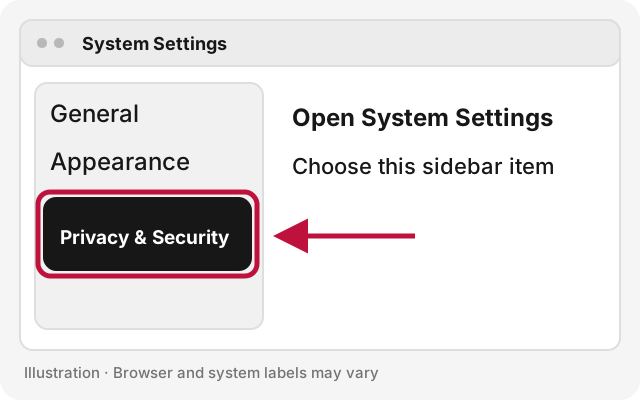
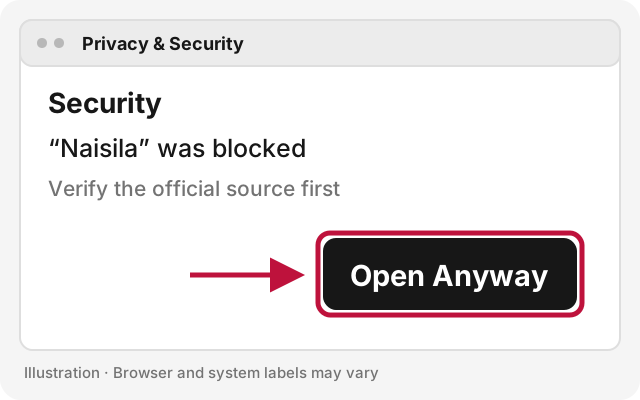
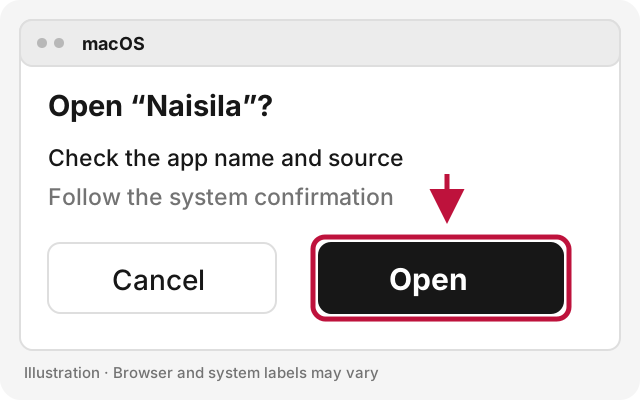
These are illustrations; macOS labels may vary. If malware is detected or macOS says the app will damage your computer, stop and contact support. Apple guidance
Choose ARM64 for Apple silicon and x64 for Intel. Check About This Mac.
Installers are loaded from the live catalog. Retry if the service is unavailable, or contact support.
Depending on the OS and client mode, macOS may request network or VPN configuration approval. Verify the app name before granting the requested permission.
Check your subscription and remaining data, try another server and close other VPN or proxy apps to avoid conflicts.