
AndroidTV ARM64
arm64 · v0.0.2
ANDROID TV · ARM64 / X64
Designed for Android TV and compatible Android TV boxes with remote control support. Pair using your phone, sync the subscription and connect.
arm64 · v0.0.2
x64 · v0.0.2
Check that your TV or box runs a compatible Android TV / Android system. Choose an ARM64 or x64 APK and transfer it using a method supported by the device. Sign in on your phone and join the same local network as the TV.
ANDROID TV · SCAN & CONNECT
No need to type account credentials with your remote. Scan with your signed-in phone, sync the subscription and connect on the TV.
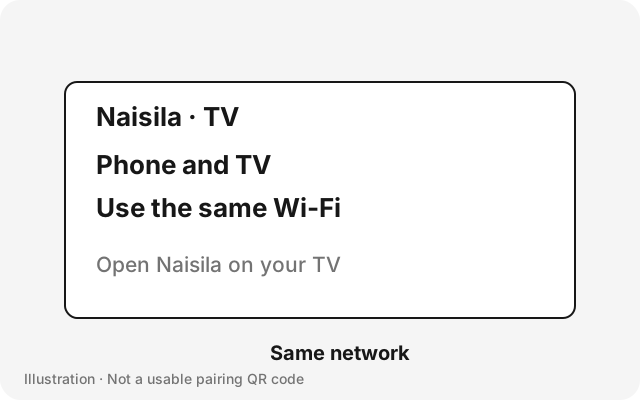
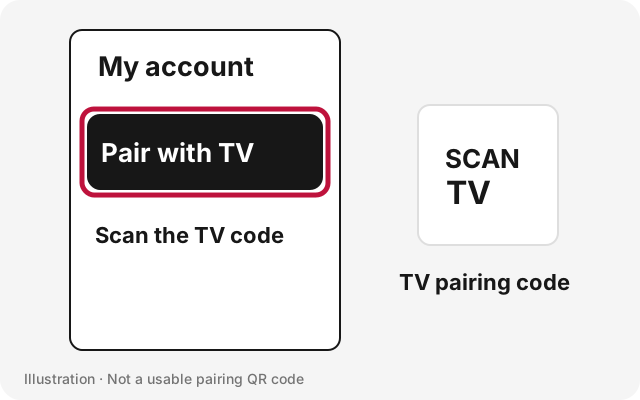
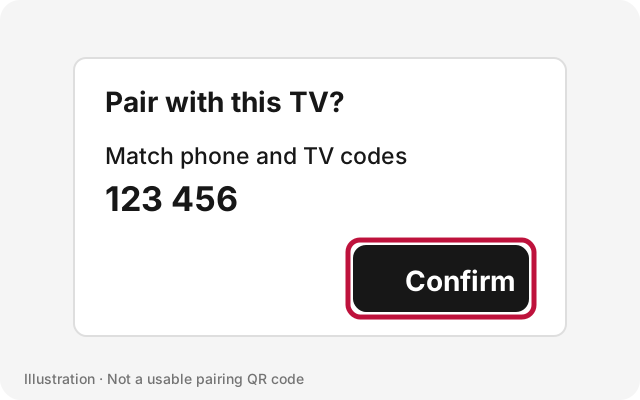
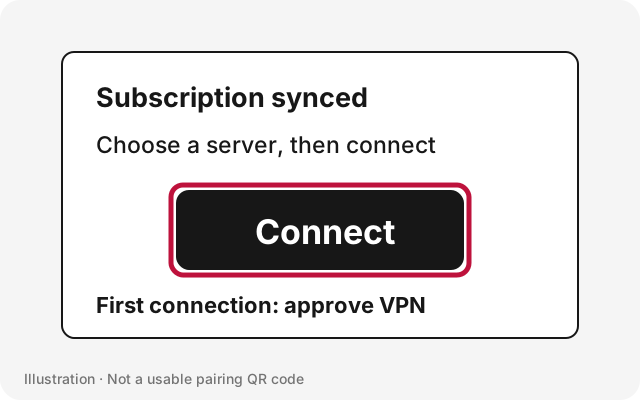
Pairing requires the same local network and camera/local-network permissions. Refresh an expired TV code. If pairing fails, check guest Wi-Fi and device isolation settings.